01
Some blocks are negotiable. Others aren’t.
Soft-block games that a parent may approve temporarily. Extra-time approval cannot unblock a hard-blocked app.
Parental controls for Ubuntu families
Oh No! Parent Control is a parental control app for Ubuntu Linux, pairing screen time and supported app limits with the flexibility real family life needs.
Available for Ubuntu 26.04 Desktop. For families sharing a computer with separate local parent and child accounts.
Built on Ubuntu’s parental-control system (aka Malcontent)

Time remaining
00:47
Games
Ask first
Supported operating systems: Ubuntu 26.04 LTS (amd64) and later
sudo add-apt-repository ppa:puffyslipperstechllc/oh-no-parent-control
sudo apt update
sudo apt install oh-no-parent-controlRestart your computer after installation to finish setup.
After restarting, follow these three steps with your child. You’ll need separate parent (administrator) and child accounts on the computer.
Log in to your parent (administrator) account. Open the “Oh No! Parent Control” Parent App, select your child, and turn on the screen-time limit.
Leave the daily allowance at 0 minutes.
Return to the computer’s sign-in screen. Select the “Oh No! Parent Control” Kiosk Account, choose your child’s account, and request the screen time they want.
A parent approves with their administrator password.
Return to the sign-in screen and log in to the child’s own account. Their approved screen time is ready to use.
When the approved time runs out, the screen locks.
Why this app?
Some limits should stay firm. Some moments deserve a little flexibility. Oh No! Parent Control makes room for both.
It starts with Ubuntu’s parental-control system, then adds practical choices for homework, game time, changing plans, and everything in between.
01
Soft-block games that a parent may approve temporarily. Extra-time approval cannot unblock a hard-blocked app.
02
A fixed-duration approval adds time to whichever is greater: remaining daily time or an existing approval. Rest of the day lasts until the next local midnight.
03
When usable time runs out, the screen locks instead of signing the child out. After approval, they can unlock the existing session.
Locking does not pause games or save work. App-rule changes, revocation, or approval without soft-app access can close blocked apps.
Understand what stays open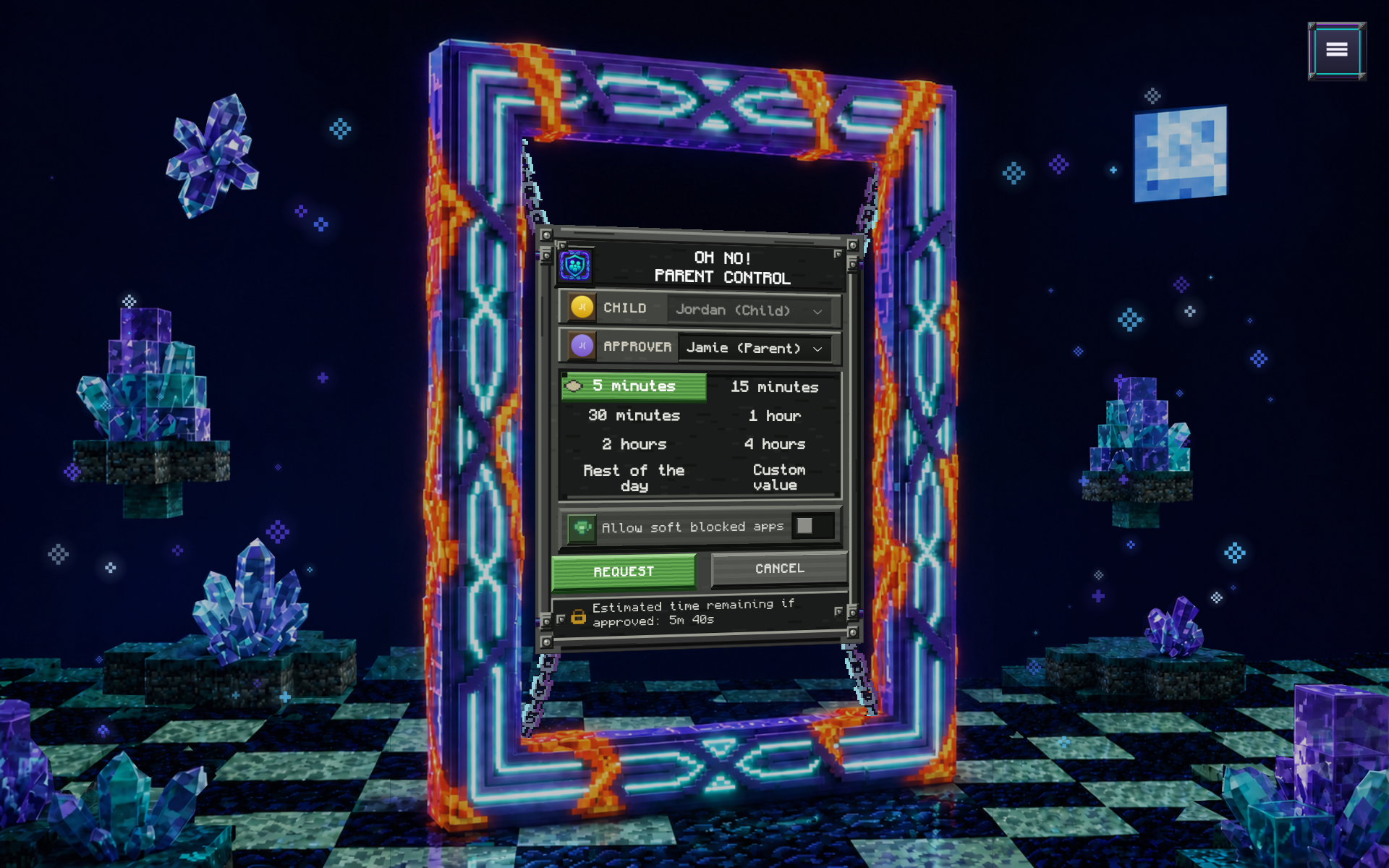
Sample accounts in an earlier screenshot. The current request footer shows a time estimate if approved. Select the image to enlarge.
A better way to ask
Kids can ask at the moment they need it. Parents approve one clear request, with exactly the access that makes sense.
Desktop: select the timer while time remains. Sign-in: use the request station and choose the child.
The selected parent authenticates the displayed request through Ubuntu’s system prompt.
From the request station, return to sign-in and choose the child’s account to unlock or sign in.
While time remains, select the desktop timer to ask for more. If the screen has already locked, use the dedicated request account on the sign-in screen.
A dedicated request screen lets kids ask for time without opening their desktop or getting anywhere near parent settings.
Remaining time stays in the panel, with a second-by-second countdown during the final minute.
Add computer time with games still blocked, or temporarily include soft-blocked games. The request makes the choice explicit.
Use zero daily minutes when access should require an active parent-approved grant. That approval can be reused for sign-in or unlock until it expires.
Smart kids choose wisely. Select an eligible parent account. That parent approves the displayed request through Ubuntu’s authentication prompt.
Rules with follow-through
Block supported apps available to the selected child, including apps installed only for their account.
Manage supported system apps, Snaps, Flatpaks, AppImages, and apps installed only for the child.
For supported native apps, the rule covers the same executable opened from the app grid, a shortcut, a file manager, or a command. Saving a blocked rule also closes matching apps already running for that child. Nice try.
Optional pattern matching can cover matching AppImage versions kept in the same folder.
Turn off screen-time limits while keeping app restrictions in place for as long as the family needs.
Revoke extra time without affecting unused daily time or tomorrow’s allowance.
App rules cover supported app targets; they do not filter web content or control other devices, and do not promise to block separately copied or renamed programs or unsupported launchers.
Read about app limits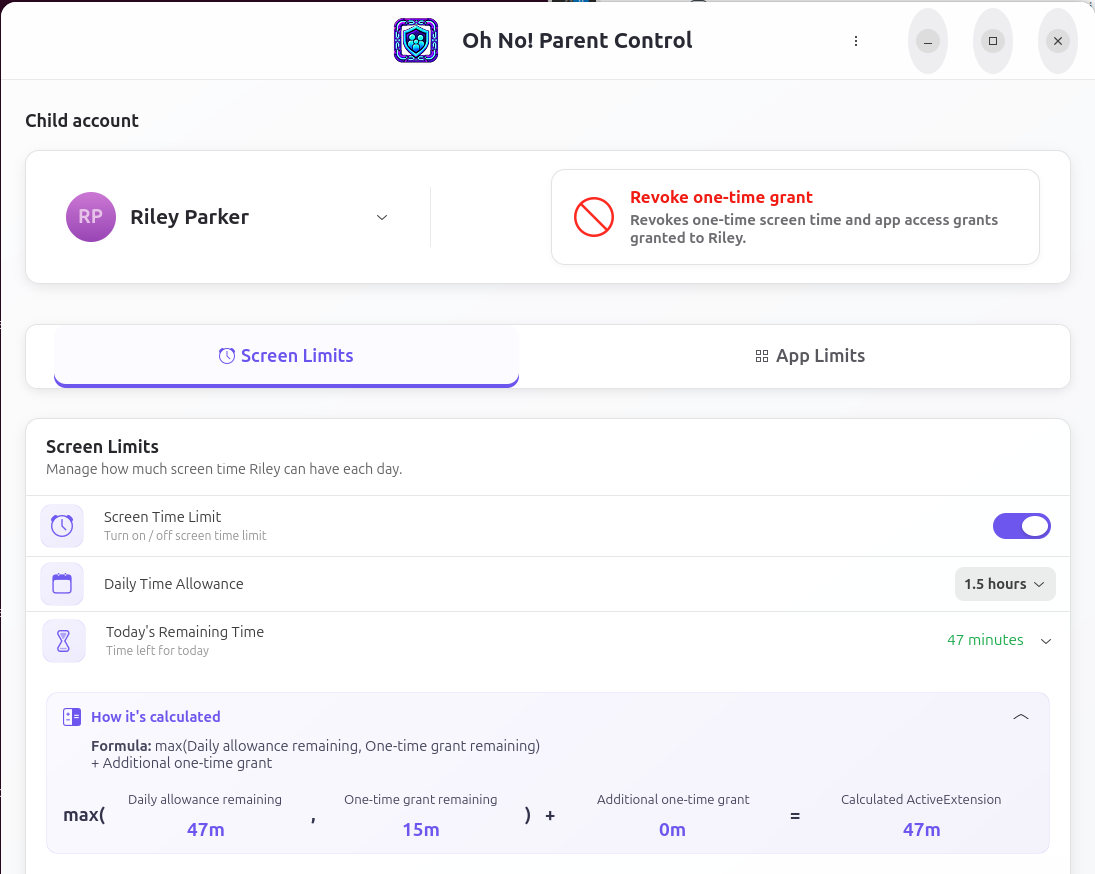
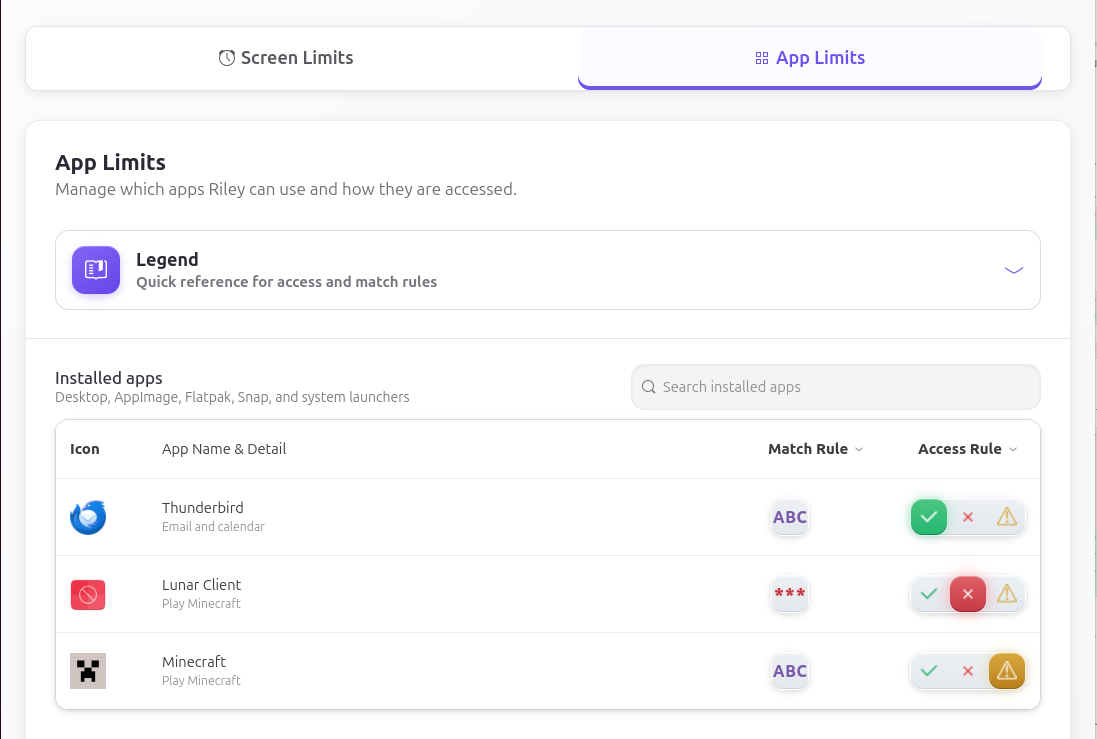
Sample accounts are shown. Names and available apps will be different on your computer. Select a screenshot to enlarge.
Private by design
The app is designed to do its job locally, without turning family routines into somebody else’s data.
Parent passwords are entered in the system authentication prompt. The child app never receives, stores, or displays them.
Screen-time and app controls work locally, without an online account or internet connection. Optional feedback sends the message, attachments, and diagnostic logs you choose to include to support. There is no cloud dashboard, advertising, analytics, or profiling in the installed app.
A parent approves only the request on screen. Approval does not open parent settings or hand over administrator access.
Oh No! Parent Control is a parental control and screen-time app for families sharing an Ubuntu Linux computer. Parents can set daily computer-time allowances, block supported apps, and approve a child's request for extra time. It builds on Ubuntu's Malcontent parental-control system and is available now.
Oh No! Parent Control is available for Ubuntu 26.04 Desktop. Installation packages support Ubuntu 26.04 LTS on amd64 and later. Use a local administrator account for the parent and a separate local standard account for each child. Compatibility with older Ubuntu releases or other Linux distributions is not established by this guide.
Set a daily allowance for each child, or choose zero daily minutes to require parent-approved time. Children can request extra time from their desktop or the dedicated request account at sign-in. A parent approves through Ubuntu's system authentication prompt. When usable time runs out, the child's screen locks and their session stays open. Locking does not pause games or save work.
Parents can mark supported apps Always Allowed, Soft Blocked, or Hard Blocked, including supported native apps, Snaps, Flatpaks, and AppImages. A parent can temporarily allow soft-blocked apps with an extra-time request; extra-time approval cannot unblock hard-blocked apps. App restrictions can stay on when screen-time limits are off.
Screen-time and app controls work locally without an online account or internet connection. Optional feedback needs a connection. Oh No! Parent Control does not filter website content, provide a cloud dashboard, or control other devices. App rules do not promise to block separately copied or renamed programs or unsupported launchers.
Use the PPA commands in the Install section of the Oh No! Parent Control product page, then restart the computer. Sign in as the parent, open the Parent App, choose the child's account, and configure Screen Limits and App Limits. The user guide explains setup, extra-time requests, app matching, and troubleshooting.
Help when you need it
Find setup help, see what’s new, or review the full privacy notice.
Quick start, screen limits, app rules, extra-time requests, revoking time, and common questions.
Browse the complete guide →New features, improvements, and bug fixes, with release notes for every version.
Explore the release notes →A plain-language explanation of what stays on the computer, who can see it, and the choices families have.
Read the privacy notice →